
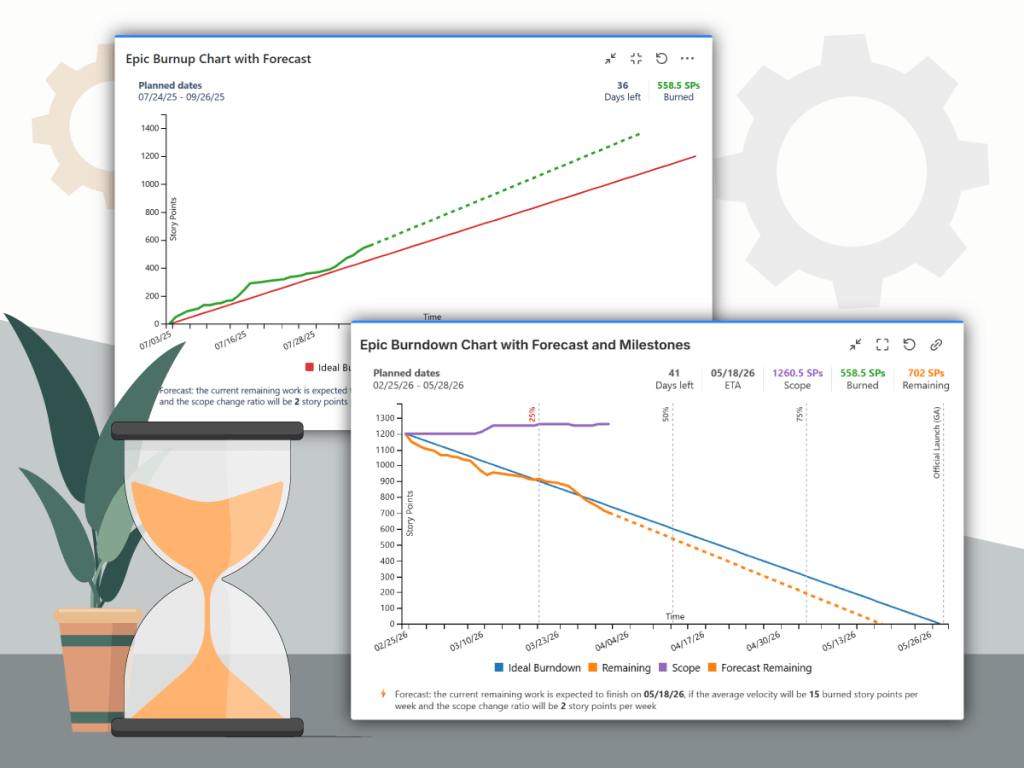
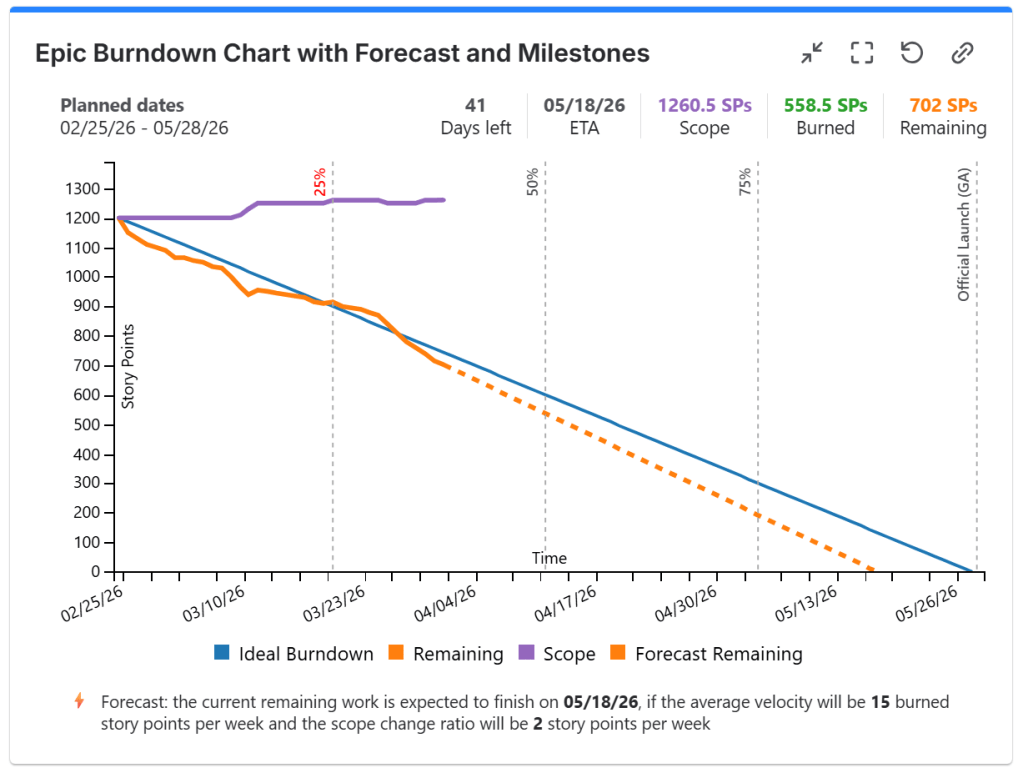
A key component of agile project tracking is the burndown chart, a visual representation of the work remaining versus time and the planned work. A burndown chart provides a real-time visualization of progress, helping to identify potential bottlenecks and ensuring that the team remains on track to meet its project goals.
One of the most effective ways to create and manage burndown charts in Jira is by using Great Gadgets app. It provides burndown and burnup charts for each sprint (with the Sprint Burndown Burnup Chart gadget) and also for the entire project, epic or team, as well as cross-team or cross-project (with the Release Burndown Burnup Chart gadget).
In addition to tracking progress at the sprint level, it’s crucial to manage larger bodies of work using epics. Epics represent significant features that can span multiple sprints and contain multiple user stories. Using epics effectively helps track the progress of the entire project and provides a higher-level overview of work completed and remaining.
With the Release Burndown Burnup Chart from Great Gadgets you can create a comprehensive epic burndown chart for your projects.
Assuming that you already have Atlassian Jira in place and the issues from your epic are already estimated, follow these steps to configure and display the Release Burndown Burnup Chart gadget:
- Make sure that you have the latest version of Great Gadgets installed in your Jira instance. If not, you can install the app from the Atlassian Marketplace.
- Add the Release Burnup Burndown Chart gadget to your Jira dashboard.
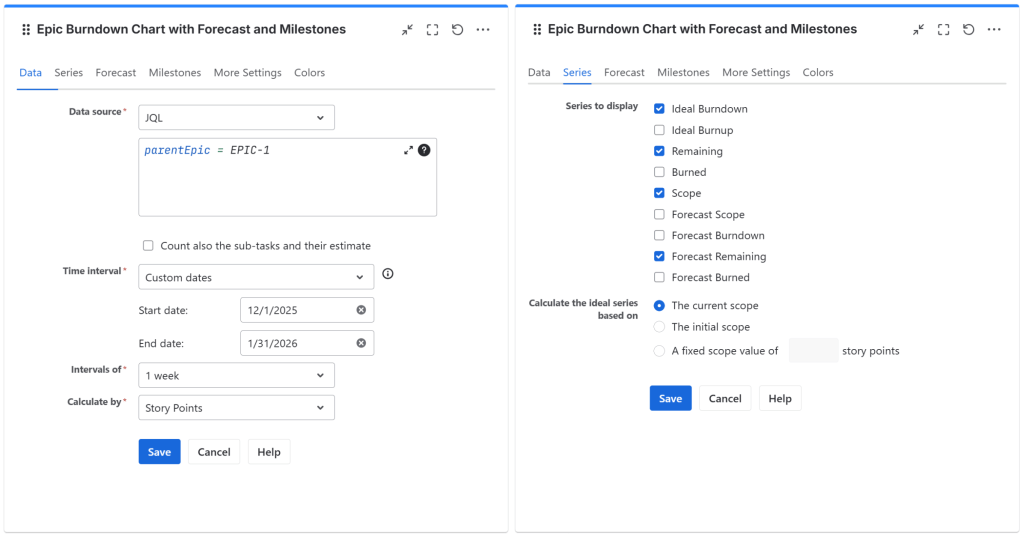
- Configure the gadget to use a filter or JQL that returns the issues from your epic. You can use something like this:
- parentEpic = EPIC-1 for tracking just one epic, or
- parentEpic IN (EPIC-1, EPIC-2) – for tracking multiple epics in the same chart
- You have the option to include the sub-tasks in the calculation and to choose from various work estimation types at Calculate by. The gadget can calculate by Story Points, Issue Count, time estimates or any other numerical field.
- In the Series tab, select Ideal Burndown, Remaining and Scope series (lines) to be displayed.
- If you want the forecast line to be displayed based on current team velocity, select the Forecast Remaining line. In this case, you can choose the velocity method in the Forecast tab.
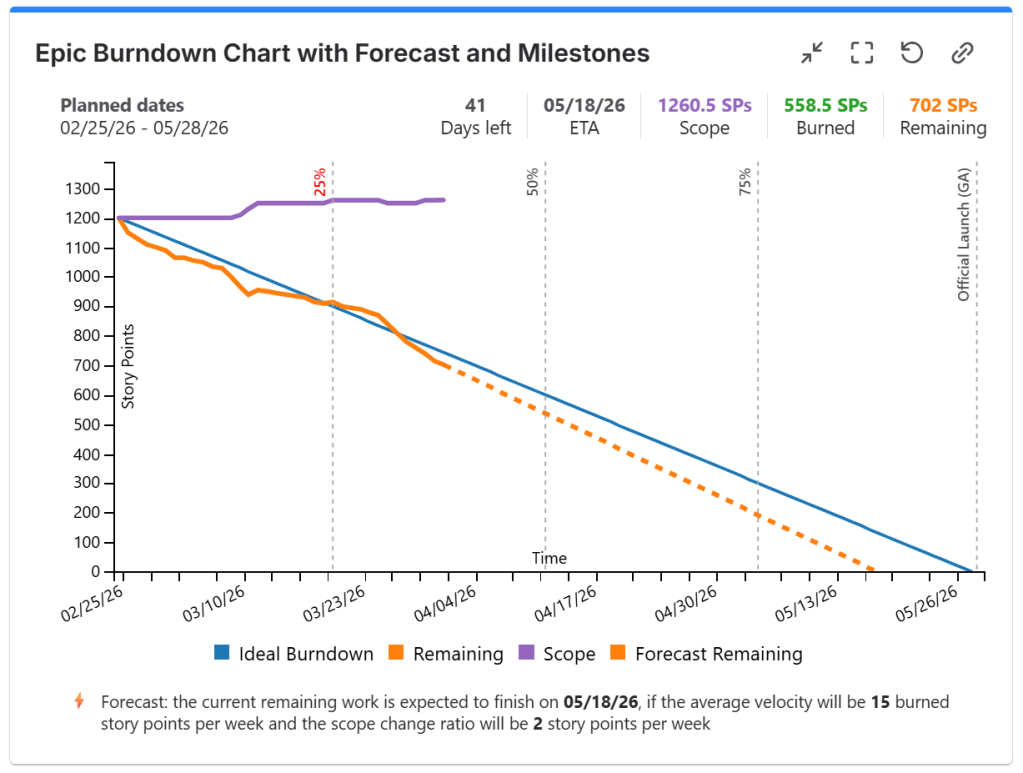
- That’s it! Click Save. The gadget now displays the epic burndown chart for your epic(s)!
- To configure the gadget as an epic burn-up chart, just choose to display Ideal Burnup, Burned and Forecast Burned series.
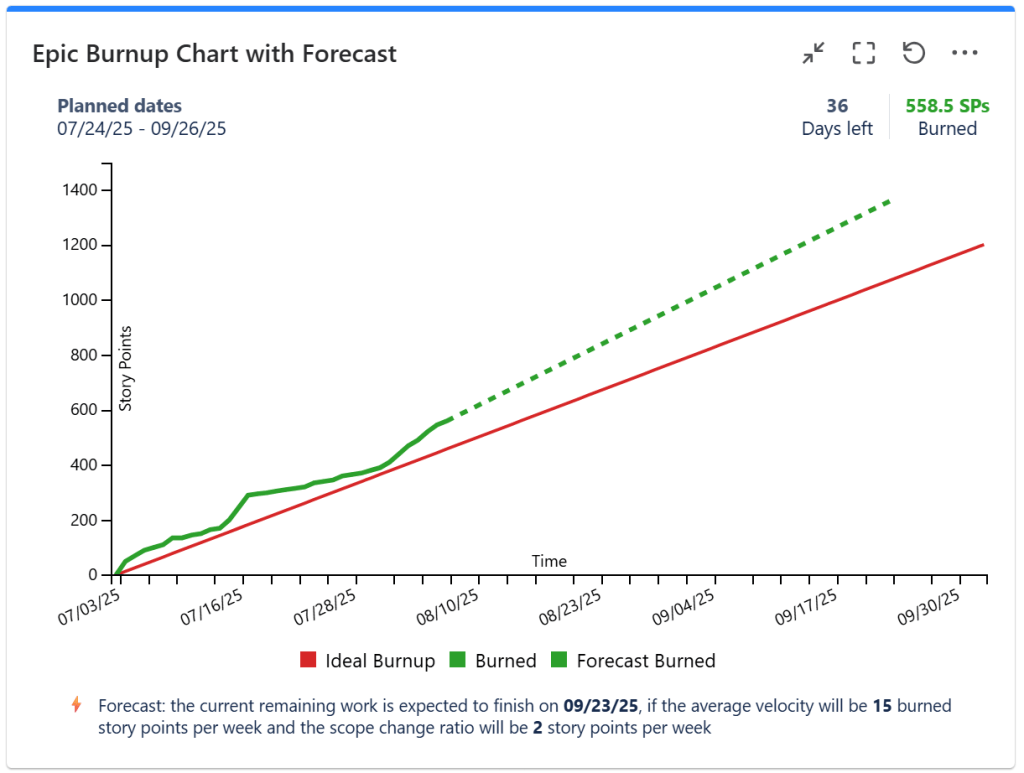
This gadget can also be used in Confluence. On the Data Center it can be imported as an external macro from Jira, while on the Cloud, you need to install Great Gadgets in your Confluence Cloud instance. The configuration steps are exactly the same.
Watch this video to learn more about how you can configure the Release Burndown Burnup Chart gadget.
If you have further questions or suggestions, don’t hesitate to contact support@stonikbyte.com.
About StonikByte
StonikByte is a Gold Marketplace Partner and the author of various apps (add-ons) for Atlassian Jira, which includes:
- Great Gadgets for Jira – a gadgets pack for tracking projects in an agile manner. Includes gadgets like sprint and release burndown / burnup charts, team velocity, issue field sum-up, cycle time, work breakdown structure (WBS) and more.
- Documents for Jira – a document management system for Jira where you can store and manage your project-related files.
- Project Team for Jira – an app that makes visible the project teams, allows extending the user profiles by adding custom fields, generates and displays org-charts.
- DevOps Gadgets for Jira – an app that brings key development insights from your Bitbucket Cloud and GitHub to your Jira dashboards. It provides essential gadgets to help teams stay on top of their DevOps processes.
To find more about StonikByte, please visit https://stonikbyte.com/.

 StonikByte
Leave a reply to How to display the progress of Epics, Initiatives and Themes in Jira or Confluence with Great Gadgets – StonikByte Cancel reply